
VectorStudio is a vector drawing app for icons, logos, diagrams and illustrations - and the file you edit is a plain .svg, not a private format you have to export out of.
Open it, draw, save. What lands on disk is the artwork itself: it opens in any browser, imports into any other editor, and can be handed straight to a developer without an export step in between. Everything happens on your own computer - no account, no sync, nothing uploaded.
Highlights
- Draws like the tool you already know - twenty-seven tools - pen, pencil, brushes, shapes, type, eyedropper, gradient, knife, scissors, eraser, and a liquify brush that pushes and twirls what you rub - with node editing, mirrored bezier handles, free transform, envelopes, and ten Pathfinder operations for cutting shapes out of each other.
- The file you edit is the file you send - no proprietary format, no export step. Save, and what lands on disk opens in any browser, imports into any other editor, and reads as text in a diff.
- A picture in, shapes out - trace a photo or a scan and get editable paths: black and white for a line drawing, three to twenty-four colours for anything else. Flat artwork keeps its exact colours rather than approximations of them.
- Change every colour at once - Recolor lists every colour a selection is made of and moves them together, or swaps one for another everywhere it appears. Keep a colour as a swatch the document owns and editing it repaints every object wearing it.
- Type that stays type - point type, text that wraps inside a box, and text running along a curve. Turn a word into editable outlines when you want to reshape the letters themselves.
- Colour, depth and finish - gradients you drag out on the artwork itself and edit stop by stop, strokes that taper or swell instead of holding one weight, dashes, arrowheads, sixteen blend modes, drop shadows, blur, clipping and opacity masks, pattern fills, and as many fills and strokes on one object as the look needs.
- Build shapes by drawing through them - drag across overlapping shapes to weld what you crossed into one, or hold Alt to cut it away. Blend two shapes and get as many steps between them as you ask for, spaced and coloured across the gap.
- Several pages in one file - keep every size of an icon, or every board of a storyboard, side by side in the same document, and export any one of them on its own.
- Measured the way the job is quoted - millimetres, inches, points or pixels on the rulers and in every field, with the page sizes you ask for by name. Set how far the artwork runs past the edge and turn on crop marks, and the exported PDF arrives at the printer ready to cut.
- Colours a printer can work from - give a swatch its ink values, or its own plate with the name the print shop uses. Everything wearing that colour follows when you change it, and the exported PDF carries the plate rather than a guess at it on screen.
- Send it to a printer - export a real vector PDF, written by the app rather than printed to paper, with the curves, the gradients and the images intact. Or PNG and JPG at one, two or three times the size.
- Opens the files a client sends - a PDF, or an Illustrator file, opens as ordinary artwork: paths you can edit node by node, gradients you can drag, text you can retype, pictures embedded in the document, one page per artboard. Double-click one where it sits, or drag it onto the window, and it opens from there. Anything the original asked for that a drawing cannot hold is listed for you afterwards instead of quietly disappearing.
- Draw once, place it a hundred times - make a symbol and every copy follows the original. Change the definition and all of them change; break the link when you want an ordinary object back.
- Drop a client's file straight in - place a photo, an SVG or a page of a PDF into the drawing you already have open and it arrives as artwork you can edit, centred and sized to fit. And if the app ever goes away without warning, it offers your unsaved work back the next time you open it.
- Photos come inside the document - place an image and its data is embedded, not linked. Move the original, rename it, delete it - the drawing still looks the same.
- Everything undoes - including a whole drag around the colour wheel, which is one step back rather than forty.
- Nothing leaves your computer - no account, no sync, no telemetry, and opening a file never makes a network request.
How it works
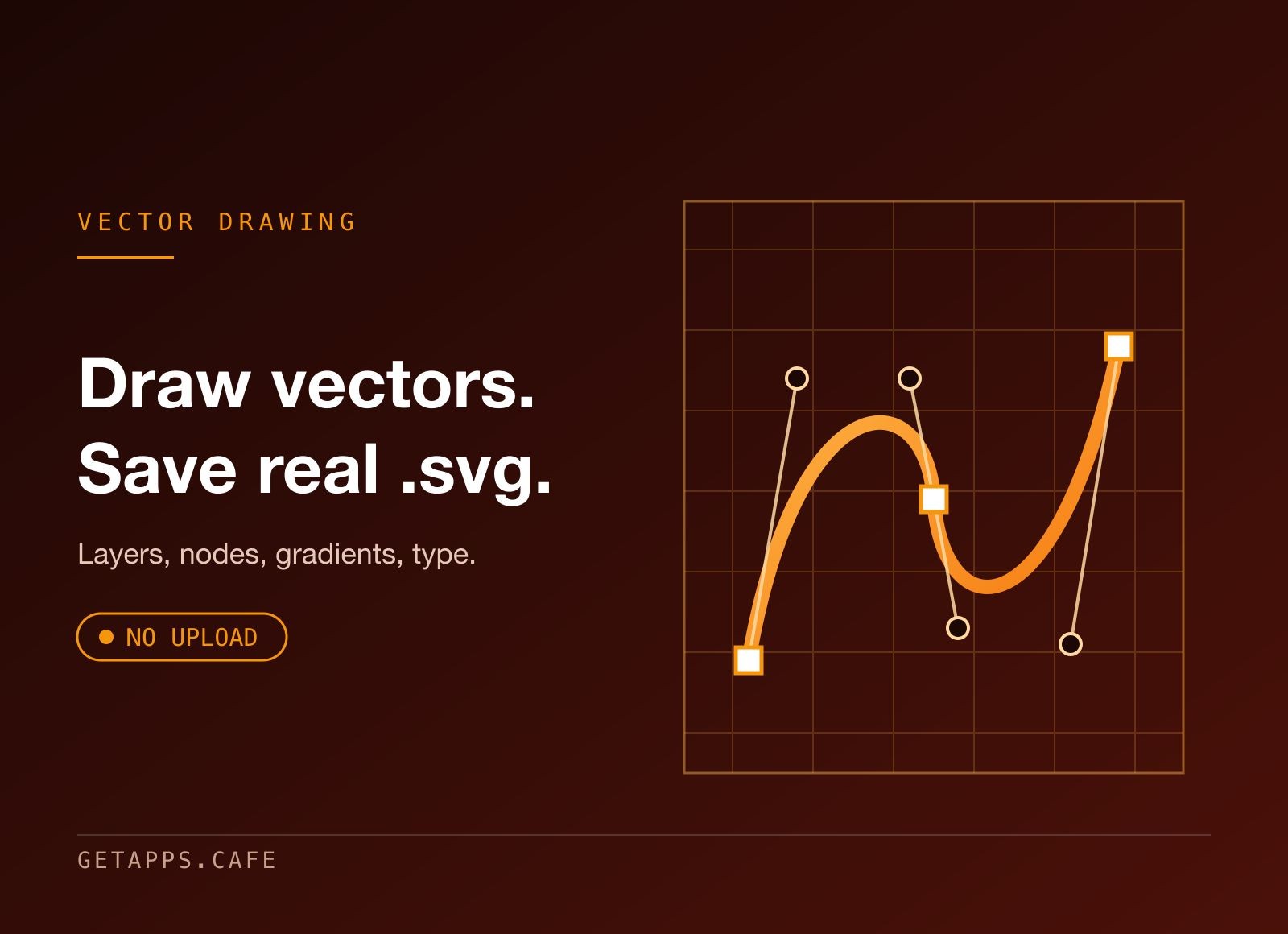
Pick a tool, draw on the page, and shape what you drew: drag a corner to scale it, pull a bezier handle to bend a curve, or cut one shape out of another. Have a photo or a scan instead? Place it and trace it, and what comes back is paths you can edit like anything else. The panel on the right sets colour, stroke, opacity, effects and type; the layers list on the same side reorders, hides, locks and renames anything in the drawing.
Already have something? Open a .svg, a .pdf or an .ai - from the app, by double-clicking the file, or by dragging it onto the window - and it comes in as shapes you can edit, not as a picture of a drawing. Save with the usual shortcut and you get an ordinary .svg file. When you need something else - a PDF for a printer, a PNG for a post - export it at the size the destination wants. Guides, grid, zoom level and everything else about how you were working stay out of the saved file: only the artwork goes in.
Perfect for
- Icons, logos and marks - the work that has to stay sharp at every size.
- Diagrams and illustrations - for documents, slides and posts, exported at whatever resolution the destination wants.
- Anyone with a sketch or a scan to turn into shapes - trace it, tidy the curves, and it is artwork like anything else you drew.
- Anyone who hands artwork to a developer - the file is already the asset - no export dance, no version that drifted from the source.
- Anyone tired of a subscription - for work a focused editor covers completely.


