Mac screen capture · 2026 field guide
Best screenshot apps for Mac, compared without the guesswork
Start with the free shortcuts already on your Mac. Upgrade only when you need faster annotation, scrolling capture, OCR, pinned references, video, or a better sharing workflow.
The short answer
Which screenshot app should you choose?
For occasional captures, use macOS Screenshot and Markup. It is already installed, saves clean images, records the screen, and covers basic arrows, shapes, text, signatures, and cropping. There is no reason to add another utility if that is the whole job.
For a daily capture workflow, our pick is CreamShot X when annotation, OCR, and pinning a capture above other windows are the recurring needs. It keeps those jobs in one focused Mac app and can be comes with a getapps.cafe membership from $4.99/month. We make it, so treat that recommendation with the disclosure above in mind.
CleanShot X is the most complete premium Mac suite here: it combines screenshots, scrolling capture, recording, cloud links, OCR, annotation, and pinned overlays. Shottr is the lightweight, inexpensive choice for pixels, measurements, OCR, and scrolling captures. Snagit best fits documentation teams that need templates, numbered steps, and a deep editor on both Mac and Windows.
Method
How did we compare these screenshot apps?
We began with jobs rather than marketing categories. A useful screenshot tool should shorten at least one real task: capture the right pixels, explain something on the image, hide private information, recover text, preserve a long page, keep a visual reference in view, record motion, or deliver the result to another person. Apps that solve different jobs can both be good without being interchangeable, which is why each pick above has a specific “best for” rather than one universal score.
The free tools included with macOS set the threshold. A paid app does not get credit merely for taking a rectangle screenshot; it needs to remove steps that Screenshot, Markup, Preview, and Live Text leave behind. We then compared each product's published capture modes, annotation and redaction tools, OCR, scrolling support, recording, storage workflow, platform coverage, and current price model. Features and prices for the five third-party competitors come from our structured research dataset, last checked against available vendor information in July 2026.
Price is evaluated beyond the first payment. We distinguish an app you can keep from a subscription, and note when a perpetual purchase includes only a fixed update window. Free tiers are treated as free only within their actual limits. For example, a recording cap, paid OCR, watermarked output, or recurring upgrade prompt can change whether a free mode works as a daily tool.
This is an editorial comparison, not a laboratory speed benchmark. We did not invent startup-time measurements, assign synthetic scores, or pretend our app is neutral. CreamShot X is ranked for the workflow it is designed to serve, and our relationship to it is stated before the first recommendation. If your main requirement is documentation templates, cross-platform deployment, automatic social styling, or custom cloud storage, another app on this list is the more appropriate choice.
Side by side
How do the best Mac screenshot apps compare?
The useful comparison is not the length of a feature list. It is whether the app removes the specific pause in your workflow: opening Preview to mark up a file, stitching a long page, copying text by hand, moving a reference window back into view, or paying for cloud features you never use.
| App | Best for | Price model | Important limitation |
|---|---|---|---|
| CreamShot XOur app | Fast capture, annotation, OCR, and pinned references | Included in getapps.cafe, from $4.99/month | Screen recording is handled by a separate app |
| macOS Screenshot | Occasional screenshots and basic Markup | Free, built in | No scrolling capture or always-on-top pinning |
| CleanShot X | An all-in-one premium Mac capture workflow | $29 once; optional $19/year updates or Cloud Pro | No free trial outside Setapp; cloud tier adds recurring cost |
| Shottr | Lightweight capture, OCR, scrolling, and pixel work | Free to use; $12 Basic license | No video, GIF recording, or built-in cloud workflow |
| Snagit | Documentation, tutorials, and mixed Mac/Windows teams | $39/year | Subscription-only and heavier than a quick capture utility |
| Xnapper | Polished screenshots for social posts and presentations | From $29.99 once, including one year of updates | No scrolling capture, video, or GIF recording |
| Monosnap | Cloud uploads and custom storage integrations | Free tier; paid plans from about $2.50/month | Free limits and a cloud-first workflow will not suit everyone |
Prices checked against the research dataset in July 2026. Monosnap's figures are partly third-party sourced because its official pricing page blocked verification; check the vendor before buying.
Before you install anything
Is the screenshot tool built into macOS already enough?
Often, yes. Press Command + Shift + 5 to open Apple's Screenshot toolbar. It can capture the whole screen, a chosen window, or a selected area. The same toolbar records the full screen or a selected portion. For a quick region capture, Command + Shift + 4 is faster.
After capture, click the floating thumbnail before it disappears. Markup lets you crop, sketch, add text and shapes, highlight an area, or place a signature. If you miss the thumbnail, open the image in Preview and use the same Markup toolbar. On supported macOS versions, Live Text can select text in an image after it has been captured and opened.
- you take a few screenshots a week rather than dozens a day;
- basic crop, text, boxes, and arrows cover your annotations;
- you do not need a long scrolling page in one image;
- you are happy to open the saved image before copying text from it.
A dedicated app earns its place when those small extra steps repeat all day. The biggest gaps are scrolling capture, immediate OCR from any screen region, blur or redaction tools, step counters, beautified backgrounds, instant cloud links, and the ability to pin a capture above the window you are working in. Screen recording also becomes a separate decision once you need system audio, GIF export, trimming, or polished cursor effects.
The full list
What is each screenshot app best at?
Best bundled value · Our app
CreamShot X
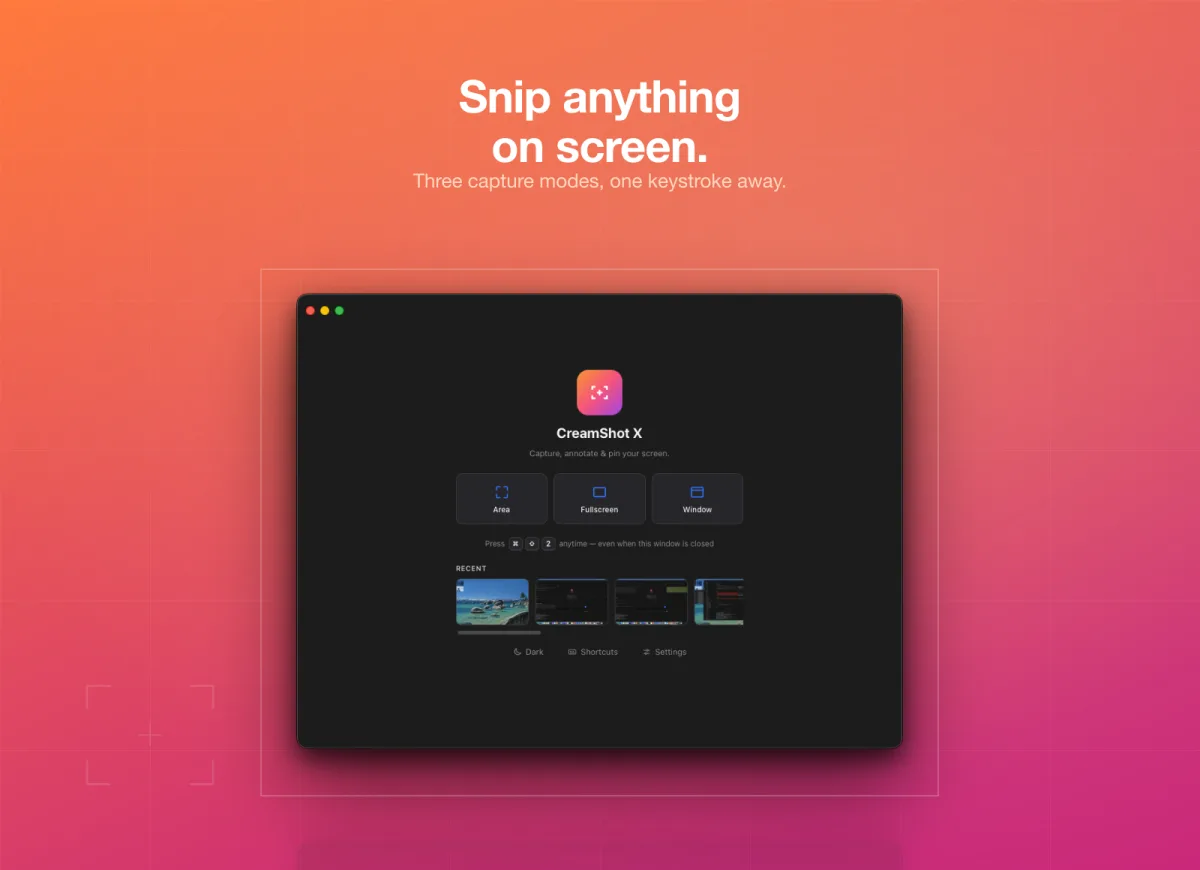
CreamShot X is for the middle ground between Apple's basic workflow and a large premium capture suite. It captures a selected screen area, puts annotation tools close to the result, extracts text with OCR, and pins a capture above other windows. That combination is useful for support, design feedback, research, and any task where an image is a temporary working reference rather than a file to archive.
The pinning feature is the clearest reason to choose it: keep a code sample, order number, layout reference, or video frame visible while the source app sits behind your current window. OCR removes the save-open- select loop when the real goal is the words inside the capture. It is a focused screenshot tool, not a cloud collaboration platform or a full video editor.
CreamShot X comes with a getapps.cafe membership, from $4.99/month, alongside CreamRec X for recording and TextShot for dedicated screen-text capture. That membership makes sense if you want several Mac utilities; if this is the only app you need, one of the free alternatives above may fit better.

Best free option
macOS Screenshot and Markup
Apple's own tools are the honest baseline. They start instantly, require no account, and do not add another menu-bar icon or background process. Screenshot handles area, window, and full-screen captures. Markup covers the annotations most people use occasionally, while Preview provides a familiar place to crop and export. The Screenshot toolbar also records the screen, which is enough when a plain local video is the desired output.
The workflow becomes clumsy when screenshots are part of the job rather than an occasional message. There is no native scrolling capture for a full webpage, no quick pinned overlay, and no direct capture-to-OCR mode. Advanced redaction, numbered steps, automatic backgrounds, and instant share links also require another tool or more manual work.
Choose the built-in route first. If you can name the repeated limitation that slows you down, use that limitation—not a generic “more features” promise—to select an upgrade.

Best premium all-in-one
CleanShot X
CleanShot X has the broadest Mac-focused capture set in this comparison. Its published feature list combines still screenshots, scrolling capture, screen recording to video or GIF, polished annotation, OCR, pinned overlays, automatic desktop-icon hiding, timed capture, and optional cloud links. If you want one refined Mac app to cover nearly every visual capture task, this is the benchmark.
The initial $29 purchase includes one year of updates and Cloud Basic storage. You can keep the last version, but another year of updates costs $19. Cloud Pro costs $8 per user per month when billed annually or $10 monthly and includes the always-current app plus unlimited cloud. That is flexible, but it means the complete cloud experience carries a recurring cost even though the base app is sold as a one-time purchase.
CleanShot X is the better fit than a narrower utility when recording, scrolling, sharing, and annotation all happen every week. It is harder to justify when the built-in tool already covers 90% of your use or when you only need OCR and pinning.

Best lightweight capture tool
Shottr
Shottr is small, fast, and unusually useful for designers and developers. Its standout tools include scrolling screenshots, OCR, a pixel ruler, a color picker, blur and redaction, and quick annotation. The app is Apple-silicon optimized and roughly 2 MB, so it feels closer to a native system utility than a full documentation suite.
You can keep using Shottr free, although it shows upgrade prompts after 30 days. A Basic license is $12 and the Friends Club tier is $30; neither is a subscription. That price makes Shottr an easy recommendation when the goal is sharper still-image capture without cloud services.
The trade-off is scope. Shottr does not record video or GIFs and does not provide a built-in cloud-sharing workflow. If every capture ends in a hosted link or a screen recording, you will need another app. If pixels, page-length screenshots, and text extraction are the work, its restraint is a strength.

Best for documentation teams
Snagit
Snagit is less a tiny screenshot helper and more a production tool for instructions. It combines screenshots, panoramic scrolling capture, screen video, webcam, OCR through Grab Text, templates, step numbers, callouts, and Screencast sharing. Its editor is built for people turning captures into training material, support articles, and repeatable process documentation.
It is also the only option in this list, alongside Monosnap, that treats Mac and Windows as first-class desktop targets. One individual license can be installed on two machines, which matters more to a mixed-platform team than a few milliseconds of capture speed.
TechSmith moved Snagit to subscription-only licensing in 2025. The individual plan is now $39 per year, replacing the old perpetual-license model. The editor can feel heavy when all you need is a rectangle and an arrow. Pay for Snagit when the templates, deep editor, and cross-platform consistency save real production time—not just because it has the longest feature list.
Best for share-ready presentation
Xnapper
Xnapper focuses on what happens after the capture. One click adds background gradients, balanced padding, rounded corners, and output ratios suited to social platforms. It can detect and redact sensitive details such as email addresses, API keys, and tokens, and it includes OCR for copying text from an image.
That narrow focus makes it appealing for founders, marketers, and writers who repeatedly turn product screens into polished posts or slides. The same focus also defines its limits: Xnapper does not handle screen video, GIF recording, or scrolling capture. A free web beautifier or Shottr's backdrop tools may be enough for occasional styling.
Pricing starts at $29.99 for one Mac, with higher one-time tiers for two or three Macs. Each license includes a year of updates; renewal is discounted, and you keep the last version if you do not renew. Teams can instead pay $5 per device per month.

Best for storage integrations
Monosnap
Monosnap combines accurate region capture, annotation, blur and pixelation, screen video, and instant cloud uploads. Its differentiator is the list of storage destinations: Amazon S3, SFTP or FTP, WebDAV, Dropbox, Google Drive, and Box. For a team with an established asset destination, that flexibility can matter more than the editor.
The free plan limits cloud uploads and caps recordings at five minutes. OCR is available on paid tiers. Reported paid pricing starts around $2.50 per user per month for non-commercial use and about $5 per user per month for commercial use, but the official pricing page could not be fully verified during our July 2026 research. Confirm the current plan before making a purchase decision.
Monosnap is a weaker fit when local-only capture and minimal account friction are priorities. It is a stronger fit when every screenshot needs to arrive in a specific cloud bucket or shared storage service with as little manual uploading as possible.
Buying criteria
Which screenshot features actually matter on a Mac?
Do you need scrolling capture?
A scrolling capture turns a long webpage or document into one image. It is essential for bug reports, page reviews, and archiving states that will change. CleanShot X and Shottr explicitly cover this job. Snagit calls its approach panoramic capture. If this need is rare, browser developer tools or a browser extension may be enough without adding a permanent screenshot utility.
Will you annotate or redact every capture?
Basic Markup handles text, arrows, lines, and shapes. Dedicated tools become valuable when you repeatedly blur names, hide tokens, number steps, measure pixels, or apply a consistent visual treatment. Snagit has the deepest documentation editor. Shottr emphasizes pixels and measurements. Xnapper emphasizes automatic presentation. CreamShot X keeps annotation close to capture without turning into a full editor.
Is OCR the result, or just a bonus?
If you occasionally copy text from an image, macOS Live Text may be sufficient. If you copy serial numbers, error messages, addresses, or code from arbitrary screen regions all day, capture-time OCR removes several steps. CreamShot X, CleanShot X, Shottr, Snagit, and Xnapper all advertise OCR. Monosnap reserves OCR for paid tiers. A dedicated tool such as TextShot makes sense when text—not the image—is nearly always the desired output.
Should recording live in the same app?
Combining stills and video is convenient, but it can make a capture app larger and more expensive. CleanShot X, Snagit, and Monosnap include recording. Apple's toolbar records simple local video for free. CreamShot X and Shottr stay focused on still images; getapps.cafe pairs CreamShot with CreamRec X for MP4 or GIF recording and trimming. Choose one suite if you switch formats often, or separate tools if each should stay small and focused.
Where should your captures go?
Local files are simple, private, and durable. Cloud links are faster for distributed feedback but add an account, a hosting policy, and often a recurring fee. CleanShot Cloud offers the smoothest integrated premium route in this Mac-focused group. Monosnap offers the broadest choice of third-party storage destinations. If you already use Slack, email, or an issue tracker, copying a local image may remain the least complicated workflow.
What will the app cost after the first year?
Compare the ongoing model, not only the checkout price. Shottr is a straightforward one-time license. Xnapper and CleanShot X let you keep the version you bought but charge for later update periods. Snagit is an annual subscription. Monosnap's useful cloud and OCR features sit behind paid plans. CreamShot X needs a getapps.cafe membership from $4.99/month, which is only economical if you also use other apps on the menu.
Build your capture stack
What if screenshots are only one part of the workflow?
Screen capture usually branches into three jobs: explain an image, record motion, or recover text. Keeping those jobs explicit helps you avoid buying a large suite for one missing feature.
Common questions
What else should you know before choosing?
What is the best free screenshot app for Mac?
Start with macOS Screenshot and Markup. They cover full-screen, window, and region capture plus basic annotation without an install. Shottr is the strongest step up if you need scrolling capture, OCR, blur, or pixel tools and can accept occasional upgrade prompts on its free use mode.
What is the best CleanShot X alternative?
It depends on the feature you are replacing. Shottr is the closest lightweight choice for scrolling capture and OCR. CreamShot X covers capture, annotation, OCR, and pinning on a membership rather than a licence fee. Snagit suits documentation teams, while Xnapper is better when beautified social images are the priority. See our full CleanShot X alternatives ranking for the detailed trade-offs—no one alternative duplicates every CleanShot X feature.
Can a Mac take a scrolling screenshot without an app?
macOS Screenshot does not provide a general scrolling-capture command. Some browsers can save a full webpage through developer tools or print a page to PDF, but that is not the same as capturing any scrolling window. CleanShot X, Shottr, and Snagit's panoramic capture are dedicated options.
Which screenshot app can copy text from the screen?
macOS Live Text can select text after an image is opened in Preview or Photos. CreamShot X, CleanShot X, Shottr, Snagit, and Xnapper include OCR in their published feature sets; Monosnap offers it on paid tiers. TextShot is a dedicated choice when copying screen text is the whole job.
Do you need a separate app to record the Mac screen?
Not for a basic recording: press Command + Shift + 5 and choose a screen recording mode. A separate recorder becomes useful for system audio, direct GIF export, trimming immediately after capture, cloud links, webcam layouts, or polished cursor and zoom effects.
Our recommendation
Use the smallest tool that removes the repeated friction.
Keep Apple's free tools if they already work. If OCR, annotation, and pinned references are the missing pieces, try CreamShot X on its own or as part of the full getapps.cafe menu.