11 macOS Keyboard Shortcuts That Replace 5 Paid Apps
Spotlight, Quick Look, Live Text, text replacements, and window tiling: macOS ships shortcuts that replace five categories of paid utilities. Here's what they cover, where they stop, and when a real app earns its keep.
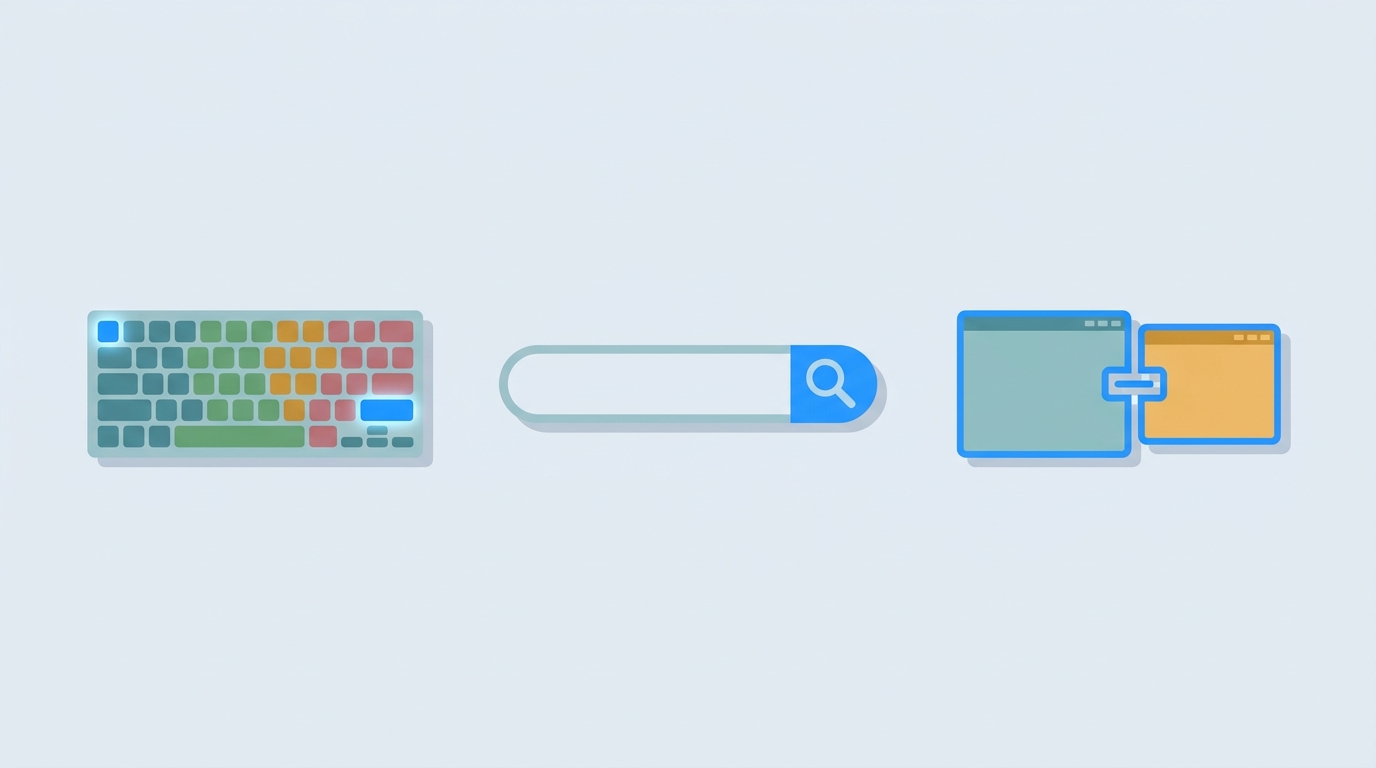
Most paid Mac utilities are bought on autopilot. You want a faster launcher, so you buy one. You want nicer screenshots, so you buy another. Each purchase makes sense on its own; together they add up to a hundred dollars of software that mostly duplicates what macOS already ships.
The built-in versions have limits, and I'll name them as we go. But for the common 80% of use, the shortcuts below replace five categories of paid apps, and they cost nothing.
Cmd+Space: the launcher you already own
Spotlight opens with Cmd+Space and does more than people give it credit for. Type an app name to launch it, type a math problem to get the answer, type "80 usd in sgd" for a conversion, or type a file name to jump to it. It also handles dictionary lookups and web suggestions.
Alfred's Powerpack runs about $35. Raycast Pro is $8 a month. Most people who buy those never touch the automation features that justify the price; they use them to launch apps and search files, which Spotlight does natively.
The ceiling is real. Spotlight can't run scripts, it can't chain actions, and its file search sometimes misses deep folders. When you hit that wall, a real launcher earns its keep. Ours is Barista, and it sits in the Espresso section of the menu.
Space: Quick Look
Select any file in Finder and press Space. You get a full-size preview without opening an app. Images, PDFs, video, audio, even Keynote and Pages files. Press Space again to close it. That's the entire interaction.
Quick Look replaces a whole class of quick-view utilities and preview apps. For most people it's the fastest way to check a file's contents all day long, and it's been in macOS for fifteen years.
Cmd+Shift+3, Cmd+Shift+4, Cmd+Shift+5: screenshots
Cmd+Shift+3 grabs the whole screen. Cmd+Shift+4 lets you drag a selection. Cmd+Shift+5 opens the full toolbar with window capture, screen recording, and a timer. After any capture, a thumbnail slides out in the corner; click it and you get markup tools for arrows, highlights, and text.
Basic screenshot apps cost $10 to $30 and do exactly this. The built-in version covers the common cases: capturing a window, a region, or a recording, with quick markup.
Where it runs out: no OCR, no pinned-on-top annotations, no scrolling captures, no one-click sharing flows. If you take screenshots for work, CreamShot X does all of that, and TextShot pulls text out of any screen area with one shortcut.
Cmd+Ctrl+C: copy text out of any image
macOS has had Live Text since Monterey. Open a screenshot in Preview, or an image in Photos or Safari, drag across the text in the picture, and press Cmd+Ctrl+C. It lands on your clipboard as real, selectable text, even when the text is handwritten.
That one shortcut quietly replaces a paid OCR utility for the common cases: pulling a serial number off a photo, copying a quote out of a screenshot, grabbing a code block from an image. Paid OCR tools run $10 to $40.
The limit is volume. Live Text works on one image at a time. When you need to scan a stack of paper into searchable text, that's a document job: ScanStraightener straightens the photos, ScanToPDF binds them into a searchable PDF, and ScanToDocx turns them into an editable Word file.
Text Replacements: the free text expander
Open System Settings, go to Keyboard, then Text Replacements. Add a shortcut and its expansion: "eml" becomes your email address, "addr" becomes your street address, "sig" becomes your sign-off block. The expansions sync through iCloud to your iPhone and iPad, so the same abbreviations work everywhere.
TextExpander runs about $40 a year. For abbreviations, signatures, and short boilerplate, Text Replacements handles it with zero extra software. It works in any app that accepts text input, same as the paid tools.
The gap shows with dynamic content. TextExpander can insert today's date, fill forms, and run scripts. Text Replacements only swaps fixed text. When your snippets need logic, the paid tools win.
Window tiling: no app required since Sequoia
macOS 15 added window tiling to the system. Hover over the green traffic-light button and you get tile options, or hold Option while clicking it to tile a window to the left or right half. Drag a window to a screen edge and it snaps there, and windows remember their layout when you plug in an external display.
That covers the basics that paid tools like Magnet handle. Magnet costs $8, and now macOS does the core job natively.
SnapBrew goes further, and it's the one I actually keep installed. It snaps by drag, by shortcut, or from the menu bar, and it handles multi-display setups without fuss.
Dictation: press Fn twice
Press the Fn key twice and macOS starts dictating into whatever field you're in. It works in Mail, Notes, Slack, anywhere. For short bursts, replies, and capturing a thought before it evaporates, it's faster than typing and it costs nothing.
Full-featured dictation apps add offline models, custom vocabularies, and transcription of recordings. If you dictate for hours a day, those matter. For the occasional two-minute reply, the built-in version is enough.
Bonus round: three shortcuts that feel like cheat codes
Cmd+Shift+T reopens the tab you just closed in Safari and Chrome. Option+drag copies a file in Finder instead of moving it, which ends the duplicate-then-drag dance. Cmd+Ctrl+Space drops the emoji picker into any text field.
The honest math
Five paid app categories, replaced for the common case:
| Instead of buying | Typical cost | The free replacement |
|---|---|---|
| A launcher (Alfred, Raycast Pro) | $35 or $8/mo | Cmd+Space (Spotlight) |
| A screenshot tool | $10-30 | Cmd+Shift+3/4/5 + markup |
| An OCR utility | $10-40 | Cmd+Ctrl+C (Live Text) |
| A text expander | $40/yr | Text Replacements |
| A window manager | $8 | Sequoia window tiling |
That's roughly $100 to $150 in one-time purchases and $40 a year, replaced by shortcuts that shipped with your Mac.
When the built-in runs out
Every tool above has a ceiling, and I named it in each section. The shortcuts cover the common 80%. The last 20% is where the café's native apps come in: Barista for a real launcher, CreamShot X for screenshots with annotation and OCR, TextShot for instant text extraction, SnapBrew for window snapping that actually sticks. They're native, local-first, and they run offline.
One subscription covers all 75 apps on the menu. Solo Cup is $9.99 a month, or $4.99 a month billed yearly. The 7-day trial needs no credit card.
If you clear out the paid apps these shortcuts replace, check our uninstall guide first, because dragging an app to the Trash leaves most of it behind.
Start your free trial and see which shortcuts you outgrow first: see the plans.