How to Speed Up Windows (Built-in Tools First)
Windows gets blamed for slowness a startup list, a full drive and a bloated browser caused. The built-in tools find it in about ten minutes, and three of them cost nothing.
A three-year-old laptop takes forty seconds to reach the desktop. The fan spins up while nothing is open. A new browser tab takes six seconds to appear, and the person typing in it has started calling the machine old.
Most of that time goes on a startup list nobody has read, a drive with four gigabytes free, and a browser holding thirty tabs it never closes. Windows ships the tools that find each of those, and the first one costs nothing.
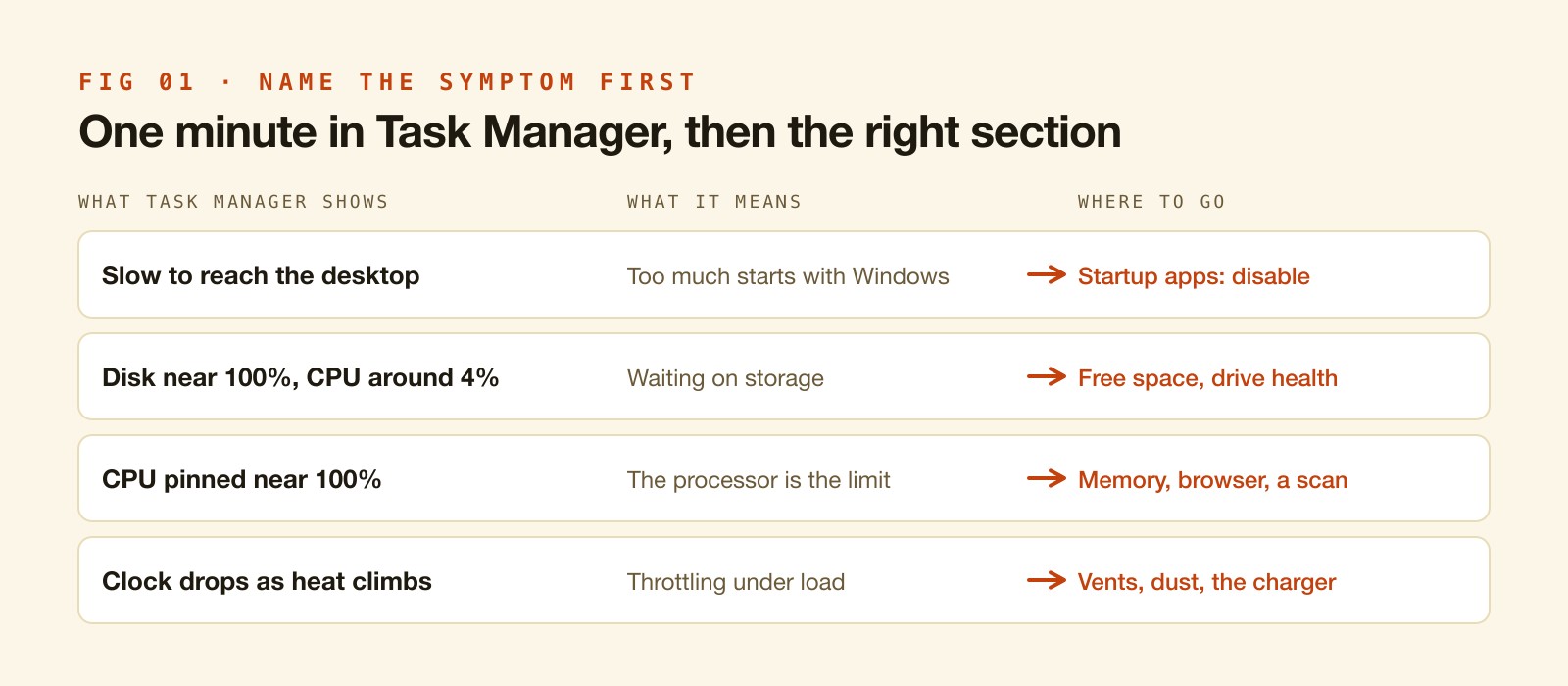
Name the symptom first
A slow PC is three problems wearing one coat. A computer that is slow to boot has one set of causes. One that reaches the desktop quickly and then stutters when a window opens has another. And a machine that behaves until a video call starts, then drops frames and runs the fan at full speed, has a third.
Task Manager separates them in about a minute. Press Ctrl and Shift and Escape together, open the Performance tab, and leave it running while you do whatever normally feels slow.
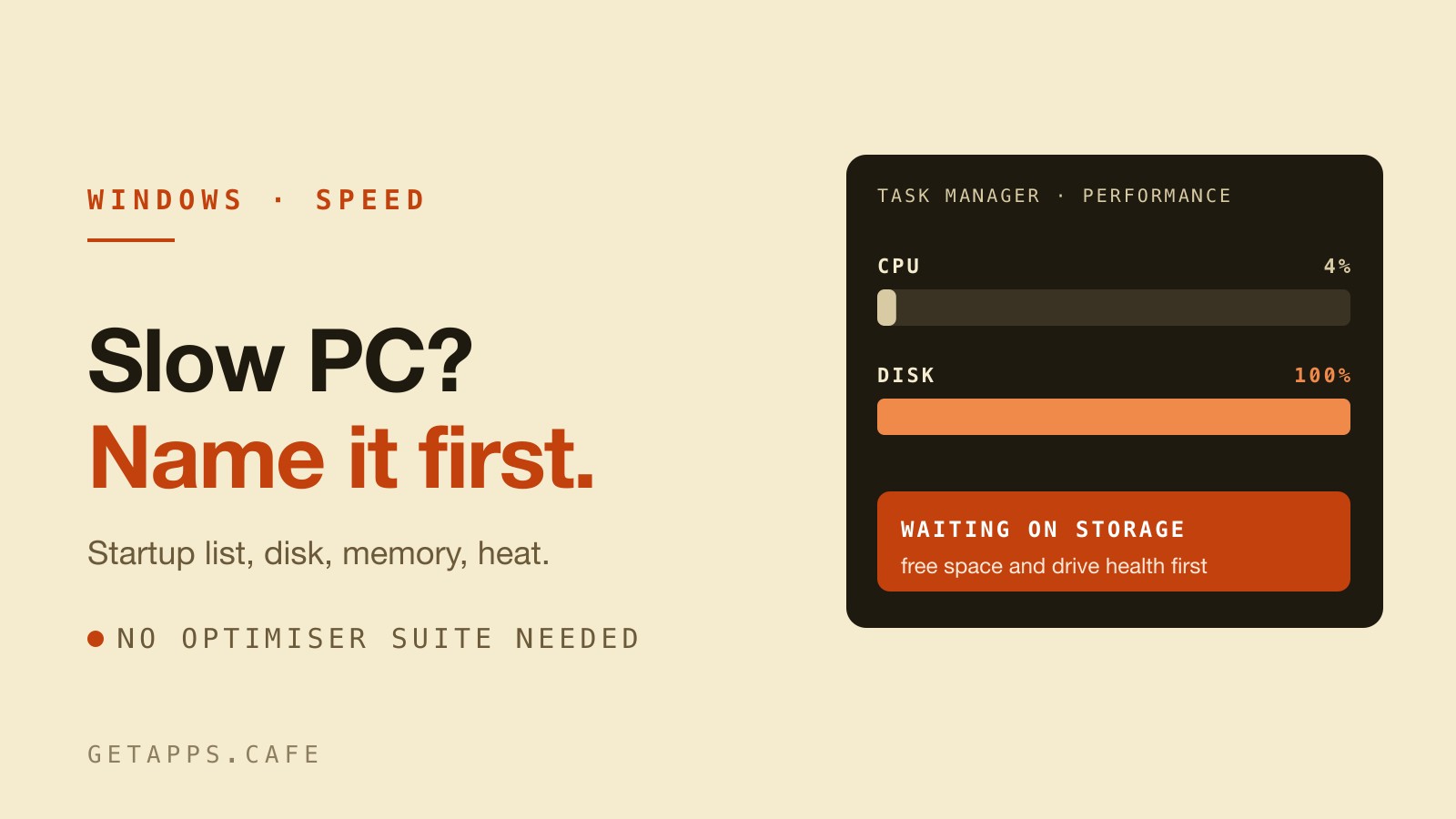
Two readings matter more than the rest. Watch the CPU percentage and the disk percentage side by side. A computer sitting at 100 percent disk activity with the CPU at four percent is waiting on storage, and that sends you to one part of this list. A processor pinned near 100 percent sends you somewhere else entirely.
The Performance tab also shows the current clock speed under the CPU graph. A chip rated at 4.2 GHz that sits at 1.1 GHz while the machine is busy is throttling.
Startup apps, where a slow boot is usually fixed
Every program that starts with Windows delays the desktop by however long it takes to load. Half of them are things you open weekly at most.
Task Manager's Startup apps tab lists them with a Status column and a Startup impact rating. That rating is measured, not guessed. Right-click anything you recognise as unnecessary and choose Disable. The program stays installed and still opens when you double-click it. It just stops opening itself.
Settings has a second list Task Manager doesn't show. Go to Apps, then Startup, and compare the two. Windows keeps packaged apps in one place and classic desktop programs in the other, so an app that seems impossible to silence usually turns up in the list you haven't checked.
Background apps are a separate problem. A program that starts with Windows costs you time once, at boot. One left running in the background costs memory and battery all day. Only one of those two shows up in the boot time. Older packaged apps expose a Background apps permissions setting under Apps, Installed apps, then the three-dot menu and Advanced options. Classic desktop programs have no such switch, which is why Task Manager stays the answer for those.
The disk, and the ten percent rule
Below roughly 10 to 15 percent free space, Windows spends time making room for itself instead of doing your work. Updates need staging space, the page file needs room to grow, and a nearly full SSD loses write speed once it runs out of spare blocks to shuffle.
Settings, System, Storage shows the categories in order of size. Open Temporary files first, because it holds the Recycle Bin, leftover update files and the previous Windows installation. Two boxes on that list deserve a second look before you tick them. The Downloads row deletes real work, and Previous Windows installation removes the only route back to the version you left.
There's a longer walk-through of that screen, including the component store and the two commands worth typing, in How to Free Up Disk Space on Windows. It belongs in a post about speed because a computer that feels slow and one that is full are usually the same computer.
Removing software you no longer use is the other half, and the space rarely comes back on its own. How to Uninstall Programs on Windows covers the four folders where the leftovers hide.
Memory, and the number Windows keeps to itself
Task Manager's Memory tab shows In use, Available, and one figure most people scroll past. Under In use, in brackets, Windows reports how much of that memory is compressed. A large compressed figure means the PC is already working to fit what you have open.
Two more numbers settle whether you need more RAM or fewer programs. Committed shows how much memory has been promised to programs, including whatever has spilled to the page file. Available shows what's left before that spilling gets worse.
Here's the practical test. Close the browser entirely, then open the one program you were complaining about. If the machine becomes responsive, the browser was the problem. Each tab in a modern browser holds its own copy of a rendering engine, and each Chromium-based app on the computer holds another one of its own. A chat app that's a website in a shell can take 400 MB before you've typed anything. The same job in a native program usually takes a tenth of that.
Visual effects and the power mode
Windows spends a little processor time on animation. On a new machine you won't see it. On an older one, the window fade is the difference between a click that feels instant and one that feels late.
Settings, Accessibility, Visual effects has the switch that turns animation off. The detailed list is still there too: press Windows and R, type sysdm.cpl, press Enter, and open the Advanced tab, then Performance Settings. Adjust for best performance takes the desktop back to a look from 2010. Choose Custom instead and keep the two or three effects you actually like.
Power mode lives in Settings, System, Power and battery. On a laptop plugged into a wall, Best performance raises the ceiling on how fast the processor is allowed to run. It raises heat and drains battery faster too, which is why the setting isn't the default.
Heat, dust, and the laptop on the duvet
A modern processor protects itself by slowing down. When the cooling can't keep up, clock speed drops, and the computer gets slower at exactly the moment you ask it for the most.
The tell is in Task Manager. Under load, watch the clock speed below the CPU graph fall while the temperature climbs. That's throttling, and it responds to a screwdriver rather than a checkbox.
The physical fixes are dull and effective. Lift the laptop off fabric so the vents can breathe. Clear dust from the intake with short bursts of air, holding the fan still so it doesn't spin backwards. On a machine three or more years old that has never been opened, a professional cleaning often buys back more speed than any setting here.
Two smaller heat sources get blamed for more than they cause. An undersized charger forces the laptop onto a lower power profile. An external display at a high refresh rate asks the graphics hardware for work even when nothing moves on screen.
Storage health, the check almost nobody runs
An SSD that is nearly full, worn, or wired through a failing cable doesn't fail loudly. It gets slower, and Windows takes the blame.
Settings, System, Storage, Advanced storage settings, Disks and volumes lets you open a drive's properties, where Windows reports its health. The Tools tab on the same dialog runs a check on the file system.
Optimise Drives deserves one visit, because it does two different jobs depending on the hardware. Press Windows and R, type dfrgui, press Enter. On a mechanical drive it defragments. On a solid-state drive it sends TRIM, which tells the drive which blocks are no longer needed. Windows schedules both weekly, and a machine that spends its life asleep or shut down can go months without either running.
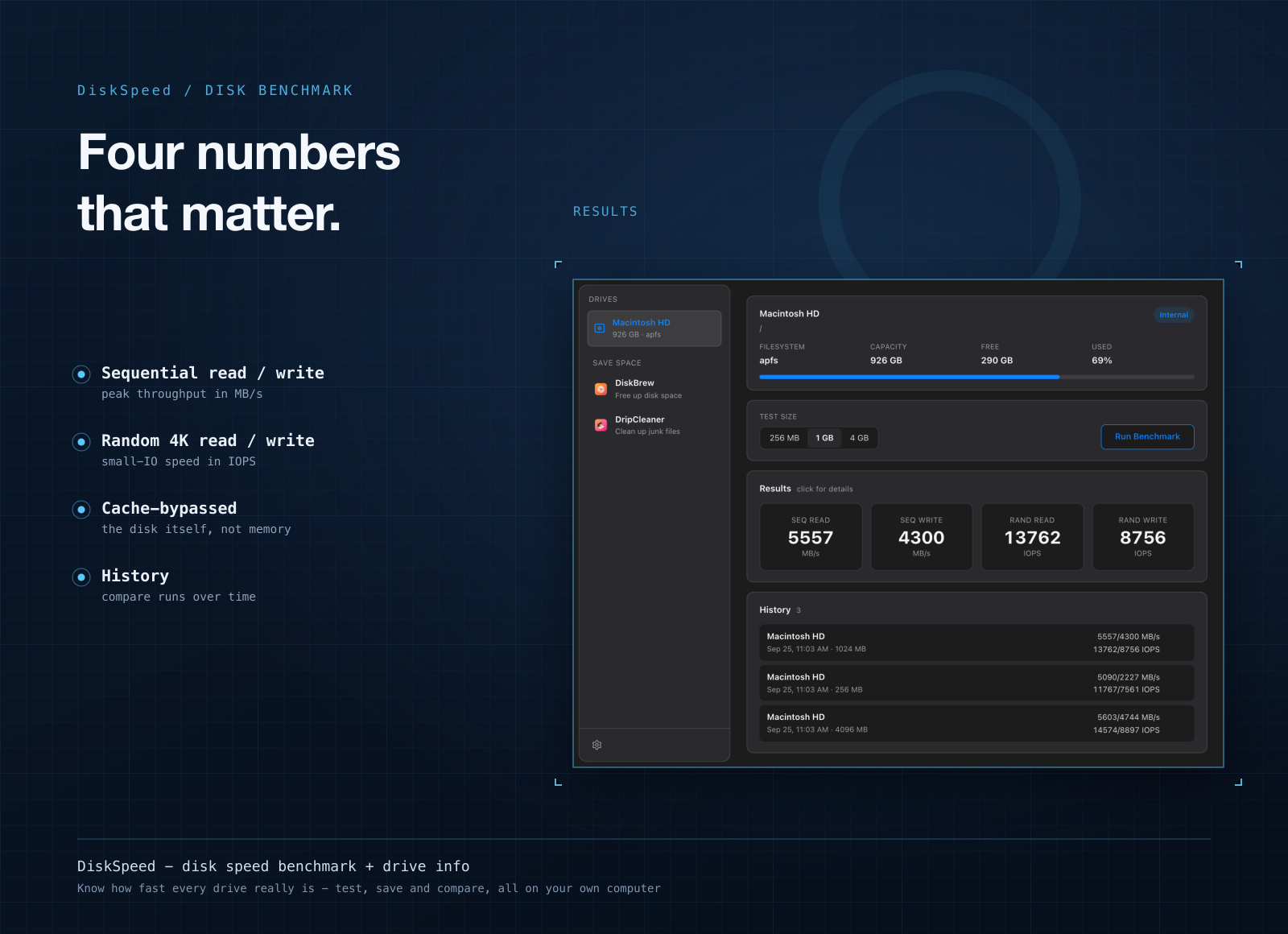
If you want the number rather than the verdict, DiskSpeed measures sequential throughput and random 4K operations, and keeps a history. An SSD reading at a third of its rated speed is a drive to replace, not a setting to change. It installs on macOS and Windows.
Malware, and why optimiser suites aren't the answer
Windows Security is already installed and already running. Open it, run a full scan, read what it says. A PC that got slower in a week rather than a year, with nothing new installed, is worth scanning before anything else on this list.
Then check the browser. Extensions are the most common thing people install and forget, and a handful of them run on every page you open. Open the extensions page, look for the ones you can't explain, and remove them.
The suites that advertise themselves as PC optimisers are the part of this list to skip. They promise registry repair, memory boosting and driver updates in one window, and they charge for it. The registry is rarely what slows a computer down. Freeing RAM that Windows deliberately uses for cache makes it slower. Driver tools install the wrong driver often enough that the manufacturer's own page stays the better source.
Where a native app earns its place
The built-in tools find the problem. Three apps on the menu make the monthly check faster than the settings screens do.
DiskBrew draws the drive as rings sized by real contents. Click into a ring to see what's inside, and the folder holding 40 GB announces itself instead of sitting three levels down inside a category called Other. Folders Windows won't let it read are labelled No access rather than counted as empty, so a total never quietly under-reports. It installs on Windows, both x64 and ARM64.
DripCleaner handles the cleanup pass. Categories expand so you can clear one without touching the rest, it lists every file over 100 MB, and it reports what's reclaimable before deleting anything. Nothing goes until you tick it. It ships for Windows as well as macOS.
DiskSpeed answers the question the settings screens can't: whether the drive still performs like the drive it claims to be.
Two honest limits. RobuStats, the menu bar monitor that would be the obvious Windows recommendation, is macOS only today. AwakeBean, which holds a computer awake through a long job, is macOS only as well. Everything named above installs on Windows, and the menu lists which build each app ships.
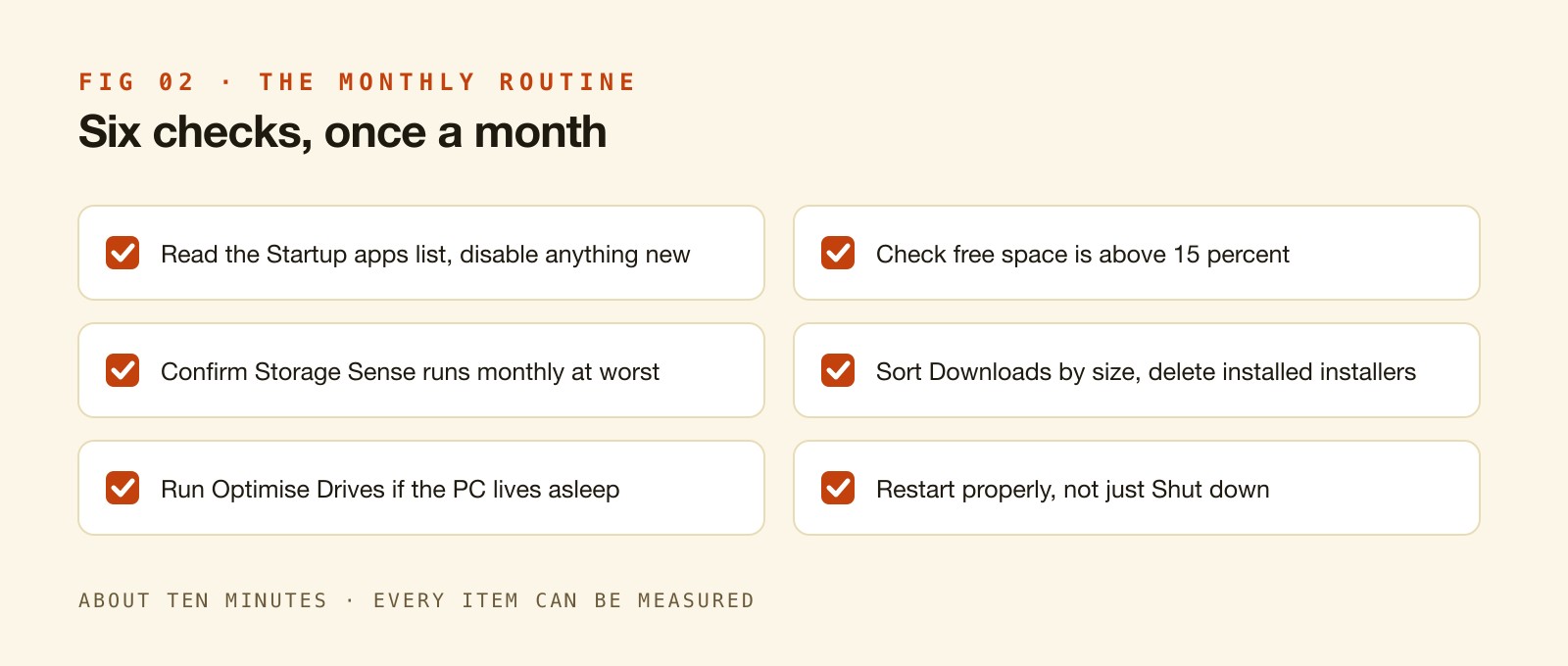
The ten-minute monthly routine
Read the Startup apps list and disable anything new that arrived with an update.
Check that free space is still above 15 percent rather than 4.
Open Settings, System, Storage, and let Storage Sense run. Confirm it's scheduled for monthly at worst.
Sort Downloads by size and delete the installers you already installed.
Run Optimise Drives once if the machine spends most of its life asleep.
Restart properly. Fast Startup means Shut down followed by a power-on doesn't clear a running session the way Restart does, so a PC that's only ever shut down can go weeks without a real reboot.
That routine takes less time than a coffee break. Every item on it can be measured, and Windows will tell you which one mattered.
What not to do
Don't disable services from a list you found online. The gains are small and the failures are strange.
Don't defragment a solid-state drive. Windows refuses, and the tools that agree to do it are the ones to uninstall.
Don't uninstall the Visual C++ redistributables. Half the programs on the machine depend on them, and the error message when they disappear names a file rather than the cause.
Don't buy a cleaner to fix a computer that needs 20 GB freed. The built-in tools handle that for nothing.
One subscription covers the whole menu: 128 native apps for macOS and Windows, 104 of which install on Windows, from $3.99 a month, or $1.99 a month billed yearly at $23.88. Family Roast covers five computers for $7.99 a month, or $3.99 a month billed yearly at $47.88. Every plan starts with a 7-day free trial that adds a card when it starts and charges nothing until it ends. See the plans.