How to Password-Protect a Folder on Mac (Built-in Tools First)
macOS has no password switch for a folder, but it does have two ways to encrypt one. What to use for a folder of documents, a photo library, a diary, and the passwords themselves.
The short answer
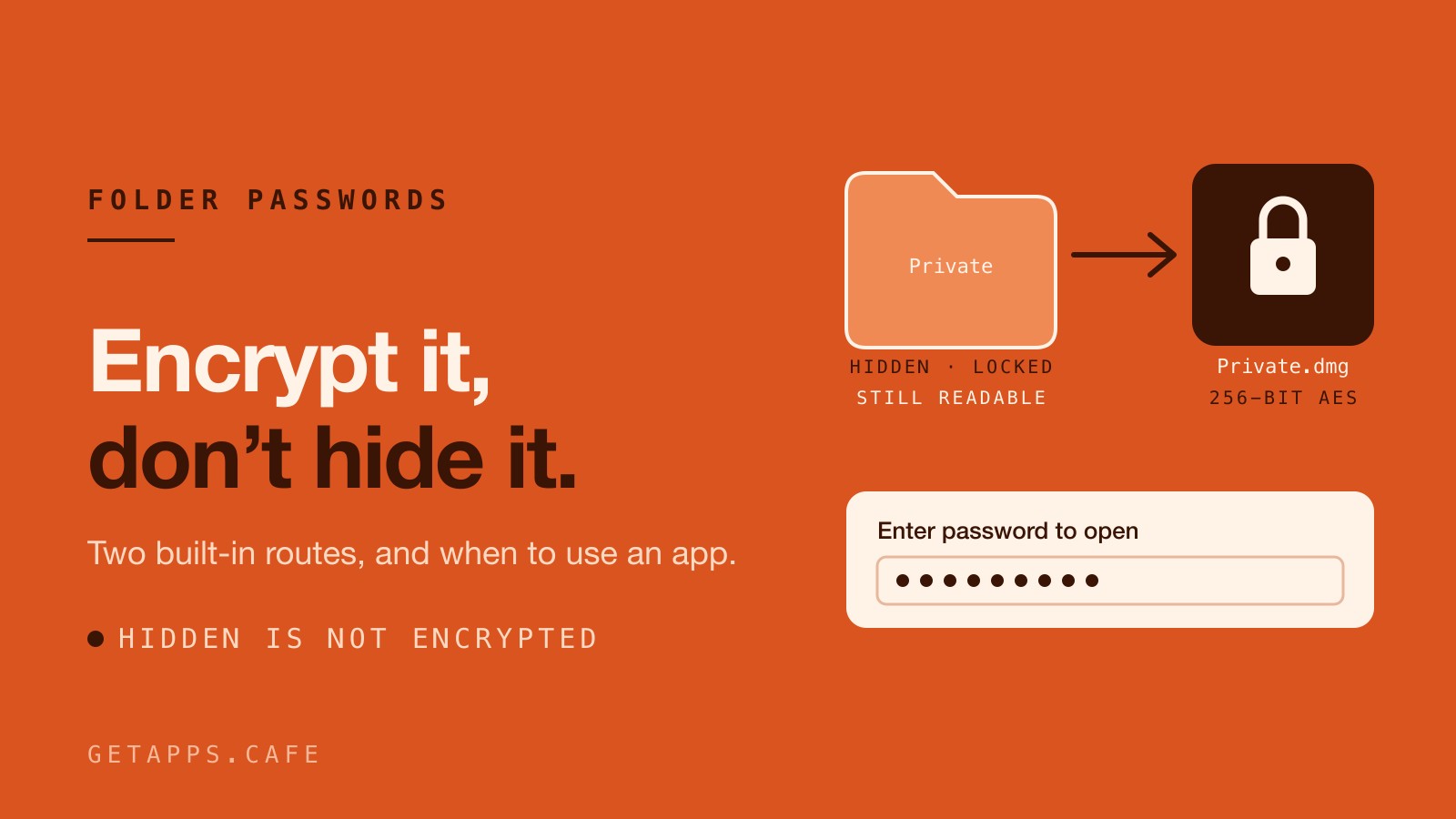
macOS has no switch that puts a password on a folder. You can hide one, lock it in the Finder, and change who owns it, and none of that encrypts your files. What the system does have is two real options: turning a folder into an encrypted disk image, and encrypting the whole startup disk with FileVault. Both work.
So the useful answer is to pick by how often you touch the folder. An encrypted image suits a folder you open, use, and close. Anything you add to every week is better served by an app that encrypts files as they arrive, because the encryption happens without you thinking about it.
What a folder lock is not
Four things people try instead of encryption, and what each one does.
- Renaming a folder with a leading dot hides it in the Finder. Every other program still sees it, and so does anyone who presses Command Shift period.
- The Locked checkbox in Get Info sets a Finder flag. The Finder won't move or delete the folder. Nothing else on the system pays attention to it.
- Permissions, changed by hand or with chmod, decide which user accounts can open the folder. They don't help with a drive that has been taken out of the machine, since permissions travel with the filesystem and a new owner can claim them.
- Compress, the command in the Finder's right-click menu, makes a zip with no password option at all. Separate archiving tools can encrypt a zip, and how strong that encryption is depends on which tool made the file.
None of these change the bytes on the disk. If someone has your login, your drive, or a copy of the folder, they read the contents.
Route one: an encrypted disk image
Disk Utility can turn a folder into an encrypted disk image. The folder becomes a single .dmg file that you double-click, type a password into, and use like a small drive. Inside, it behaves like any other folder.
- Open Disk Utility, which lives in Applications, Utilities.
- Choose File, then New Image, then Image from Folder, and pick the folder you want to protect.
- Set the encryption to 256-bit AES, give the image a name and a location, and set a password. Leave the Keychain option switched off unless you accept that anyone signed in can open the image without typing a thing.
- Click Save. The original folder stays where it is, so delete it yourself once you've confirmed that the image opens and holds everything.
There's a Terminal version of the same job if you'd rather type than click. It writes the image beside the folder, asks for a password, and takes a few seconds for a folder of ordinary documents:
hdiutil create -encryption AES-256 -srcfolder ~/Desktop/Vault -volname Vault ~/Desktop/Vault.dmg
What makes the built-in route clumsy is everything that happens around the encryption. While the image is mounted, the files inside are as readable as any other file on the machine, so a screenshot, a backup that runs mid-session, or a colleague at your desk sees them. You have to remember to eject it. Editing something inside means mounting, editing, and ejecting again, which is why most people go back to leaving the folder open.
Route two: FileVault, for the whole machine
FileVault encrypts the startup disk. Open System Settings, go to Privacy and Security, and turn FileVault on. The key is tied to your login, with a recovery key worth writing down and storing away from the machine.
What it protects is a Mac that's switched off or logged out, if it gets lost, stolen, or handed in for repair. A folder copied to a share, a cloud folder, or a USB stick sits outside it, and so does anyone using your account while you're signed in. For the laptop that leaves the house, it's the setting worth turning on first.
Route three: a folder that encrypts itself
If the folder holds photos and videos, the built-in image is more work than the job deserves, because a library is something you keep adding to. PrivateMedia takes a different approach: you point it at a folder, and each file is hashed, thumbnailed, and encrypted on the way in, so nothing reaches the disk in the clear.
What that looks like in practice:
- The password you set the first time derives the key for the whole library. Photos, videos, thumbnails, and the index are all encrypted, and the app says plainly that there's no reset link and no backup key.
- Import accepts single files or a whole folder. Files already in the vault are skipped, so re-importing the same camera dump costs nothing.
- An optional pass overwrites and removes each source file once it's safely inside, the step the built-in route leaves you to do by hand. It matters most for the folder in Downloads that nobody remembers to clean up.
- Locking drops the key out of memory. A locked vault on disk is a folder of unreadable files, and the app can lock itself after an idle timeout from a minute to an hour, or on a keystroke.
- Three wrong passwords pause the gate before it will try again.
- Any photo or video exports as an ordinary decrypted file, so the library never holds your own material hostage.
There's no account, no sync, and no server, which means it works with the Wi-Fi off. It runs on macOS and Windows and sits on the Frappe shelf. Two limits are worth stating: it's built for photos and videos rather than arbitrary documents, and the password remains the one thing standing between a stranger and the library.
Route four: one encrypted file instead of a folder
When the thing you're protecting is writing rather than a library, a folder is the wrong shape. SteepJournal keeps a diary in a single file that you name and store wherever you like, sealed with a key derived from your password. Opening that file in any other program shows nothing readable.
Several journals can live side by side, each with its own password, so a travel log keeps its own secrets. On a Mac with Touch ID a fingerprint is enough, and the password still works. It locks itself after a few idle minutes, or the moment you switch apps. Lock Now is one keystroke, for the times you hear someone coming. The whole thing also exports as a personal site with a timeline, a page for every entry, tag and month archives, and a search that works offline, all without a server.
SteepJournal's own page says it plainly: lose that password and the journal can't be opened by anyone, including the people who made it.
Where the password itself lives
Every route so far moves the problem rather than solving it. You end up with one password standing between you and the thing you most wanted private, and it needs to be somewhere you can reach without the laptop.
PassBrew is the local half of that. It opens and creates KeePass .kdbx files, a format several other programs can read, so the database isn't locked to one app. It handles master passwords and key files, generates diceware passphrases, reads live two-factor codes from your entries, and flags reused or weak passwords without sending a thing anywhere. The clipboard clears itself, and the vault locks when you step away. It's Mac-only today and lives on the Cold Brew shelf.
The half no password manager can do is survive the machine being gone. Keep a written copy of your master password somewhere away from the computer and the backup drive, and replace the copy whenever you change the password. That rule holds for any encrypted container, and it's worth ten minutes once.
Matching the job to the tool
| What you're protecting | What to use |
|---|---|
| The machine itself, if it gets lost or stolen | FileVault |
| A folder of documents you open, use, and close | An encrypted disk image in Disk Utility |
| A photo and video library you add to constantly | PrivateMedia |
| Writing you want nobody else to read | SteepJournal, on the Affogato shelf |
| The passwords for all of the above | PassBrew |
What none of this fixes
Encryption is a decision you make before a copy leaves. A folder already uploaded to a service, shared into a cloud folder, or read by a backup tool that keeps its own copy sits outside the reach of anything you install today. The moment to encrypt is when you create the folder, and the upload problem is the reason to keep the original local in the first place.
It doesn't answer the recovery question either. A locked vault that nobody alive can open is a locked vault with the photographs still inside it, and that's a real trade rather than a bug. The backup piece walks through the custody, format, and restore tests that decide whether the copy you have is worth much, and a password is part of that arithmetic.
What encryption does buy you is the plainest thing on the list: the file is yours, on your disk, in a format another program can read once you unlock it. You can prove that to yourself by opening the vault with the Wi-Fi off, which is also the test in the account piece.
PrivateMedia, SteepJournal and PassBrew are three of the 128 native apps on the getapps.cafe menu, and the encrypted disk image needs nothing installed at all. One membership covers every one of them on macOS and Windows, from $1.99 a month billed yearly or $3.99 monthly, with a 7-day free trial that adds a card when it starts and charges nothing until it ends. Start your free trial.